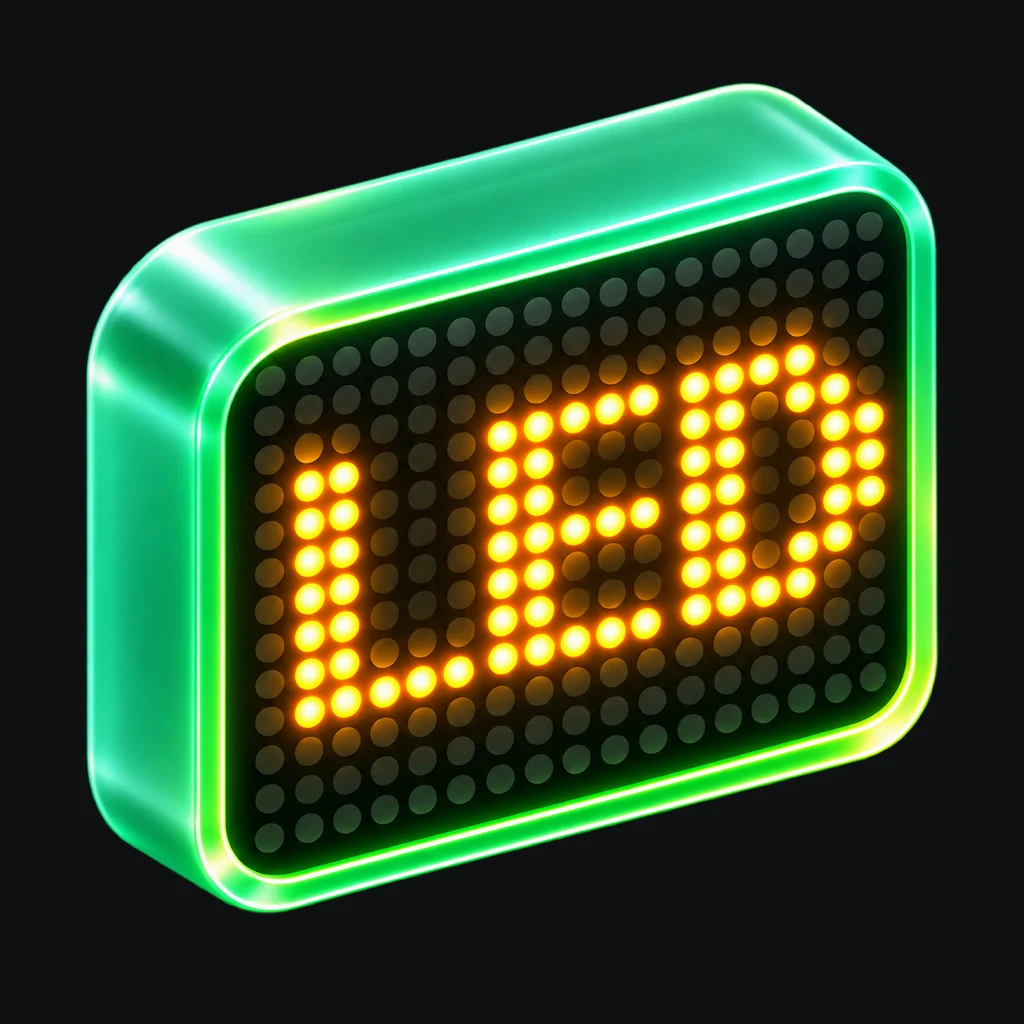


Typography
Give your words their own character.
Explore type, weight and LED shapes to give your message a look of its own.
LED Signboard — Text Scroller
Turn your iPhone screen into a scrolling LED message. Make it yours, show it fullscreen, and share it.

Made for iPhone · iOS 18 or later
From thought to screen
Cheer from the stands, welcome a friend, or share a thought across a crowded room. Shape the text, motion and canvas to make the moment yours.
Give your words their own character.
Explore type, weight and LED shapes to give your message a look of its own.
Set the scene for your message.
Combine color, media backgrounds and artwork on your canvas.
Find the right pace.
Adjust motion, present fullscreen, or export a silent GIF or MP4 to share.
A little inspiration
Apple shows the available product, price, currency and billing terms before you confirm a purchase. Review that sheet before approving payment.
Open Premium and choose Restore Purchases while signed in to the Apple Account used for the original transaction. Restoring access does not restore locally saved panels or imported files.
Apple handles App Store refund requests. Sign in to Report a Problem, select the transaction and follow Apple’s steps. Apple decides whether a request is approved.
Drafts, saved and recent panels, plus imported media, are stored in the app’s local container. There is no Leminox Studio account or developer-operated cloud sync in the inspected source. Deleting the app may remove this local content.
Photos access lets you choose an image or video for a panel and, if you choose, save a GIF or MP4 export to Photos. You can share an export instead, or manage Photos access in iOS Settings.
The app renders a silent GIF or MP4 locally. Keep it open while rendering. You then choose whether to save it to Photos or share it; the destination you select applies its own terms and privacy practices.
Include what you were doing, your iPhone model, iOS version and app version. For a purchase issue, include a transaction reference if available. Do not send passwords, verification codes or full payment-card details.